
AI Pose Changer vs PoseUp
Compare the evidence behind a pose edit: the intended movement, the details that changed, and the limits of the available tests. This review includes five AI Pose Changer examples; matched PoseUp outputs are not yet available.
Choose the workflow that fits
Choose AI Pose Changer for…
Preparing a specific photo edit with text, your own reference, or a built-in pose. Our source image, optional guide, instructions, and preview stay together, so you can work from an existing idea without a separate discovery step.
Consider PoseUp for…
Exploring pose ideas by mood or occasion before you edit. PoseUp’s public site emphasizes discovering references and understanding a pose. That approach may suit you when choosing the body language is still part of the task.
This comparison is published by AI Pose Changer. It covers our current interface and the reviewed product documentation, not a controlled output-quality test. Real-account generation and payment have not been verified in this review.
The differences at a glance
Compare the same task and input requirements before choosing an editor.
| What matters | AI Pose Changer | PoseUp |
|---|---|---|
| Starting point | Your photo and the change you want | Pose discovery and photo editing |
| Text instructions | Describe the pose; no reference required | Presets and text prompts documented |
| Visual direction | Upload your own guide or select from 70 references | Curated pose library and presets |
| Output format | 2K / Medium; inspect the actual output crop | Check available settings in the current editor |
| Budget basis | 5 credits per image at 2K / Medium | Credits and offers use a different billing scale |
| Review evidence | Five team-tested outputs and source/reference images | Product documentation; no matched test outputs |
Comparison purpose: what should a useful pose edit achieve?
- 1Original portrait
- 2One intended movement
- 3Inspect the result
This AI Pose Changer vs PoseUp review asks whether a pose-editing workflow can help you make a specific change to an existing portrait. The target is a visible movement, such as moving a hand to the waist or turning the shoulders, while keeping enough of the person and scene for the intended use. An attractive image alone does not establish that the request was followed.
We separate documented product features from observed image results. Our team supplied five AI Pose Changer tests using library references. We do not have PoseUp outputs made with those same inputs, so this page cannot establish which service produces better images.
Evaluation criteria: what we look for
These are qualitative checks, not a numerical score. Apply the same criteria to both services using the same source photo, pose reference, instructions, and comparable output settings. Record every attempt rather than selecting only the best result.
Pose accuracy
compare the intended hand placement, shoulder angle, and stance with the result.
Facial likeness
compare visible facial features, hair, expression, and head angle with the source.
Anatomy and props
inspect fingers, wrists, arm connections, and how bags or cameras are held.
Clothing and scene
check garment details, accessories, lighting, and background changes.
Framing
check the actual aspect ratio and whether important body parts remain visible.
Time and cost
record elapsed time, credits used, and repeat attempts needed for a usable image.
Case comparison: original, pose reference, and output
PoseUp’s official library shows standing and seated pose ideas organized with gender and difficulty labels. Its homepage offers browsing by mood, occasion, and location. This supports an assessment of reference discovery, but the library examples do not show an input photo and its generated result.
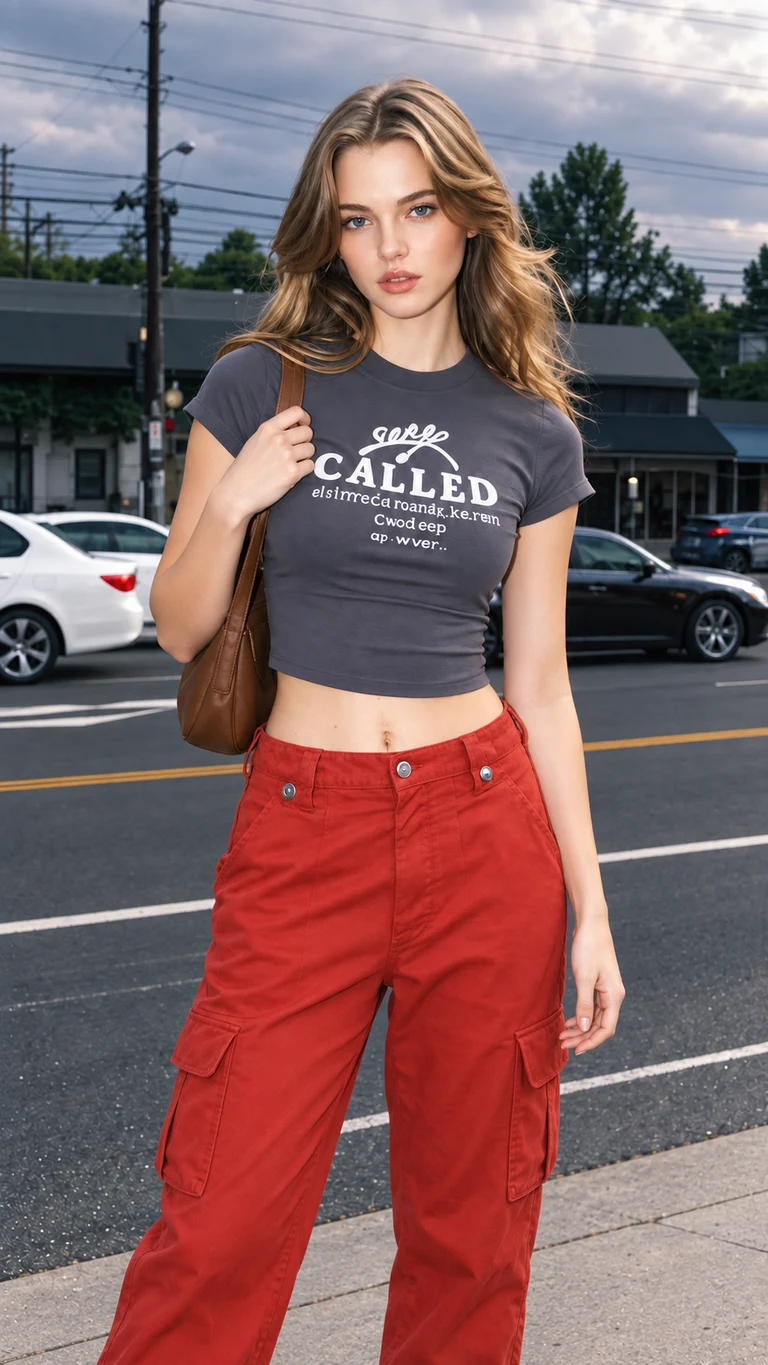
The five examples below compare each source with its reference and AI Pose Changer result. They cover a hand on the hip, holding a shoulder strap, looking over a shoulder, holding the opposite arm, and walking with a shoulder bag. These are within-tool comparisons; no image below is presented as a PoseUp result.
Our team used 2K / Medium settings and the same instruction across the five requests. Each example is a single generation without post-generation retouching. Timing was reported as usually about one minute, rather than a measured service-wide average. The website uses WebP display copies.
- PoseUp
- Official reference library
- AI Pose Changer
- 5 recorded pose edits
- Comparison scope
- No matched competitor outputs
PoseUp library examples
08 poses · Select to enlarge ↗
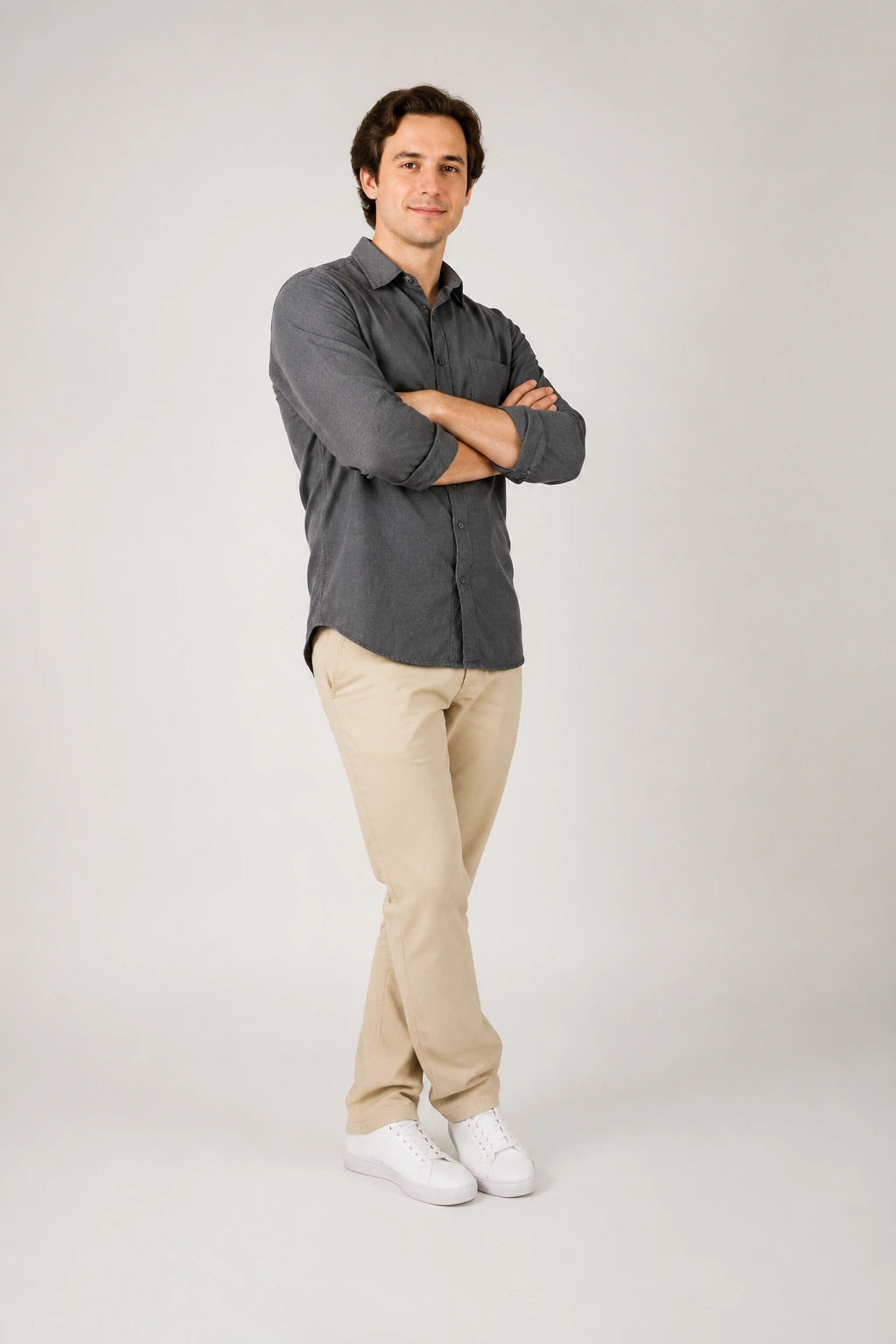

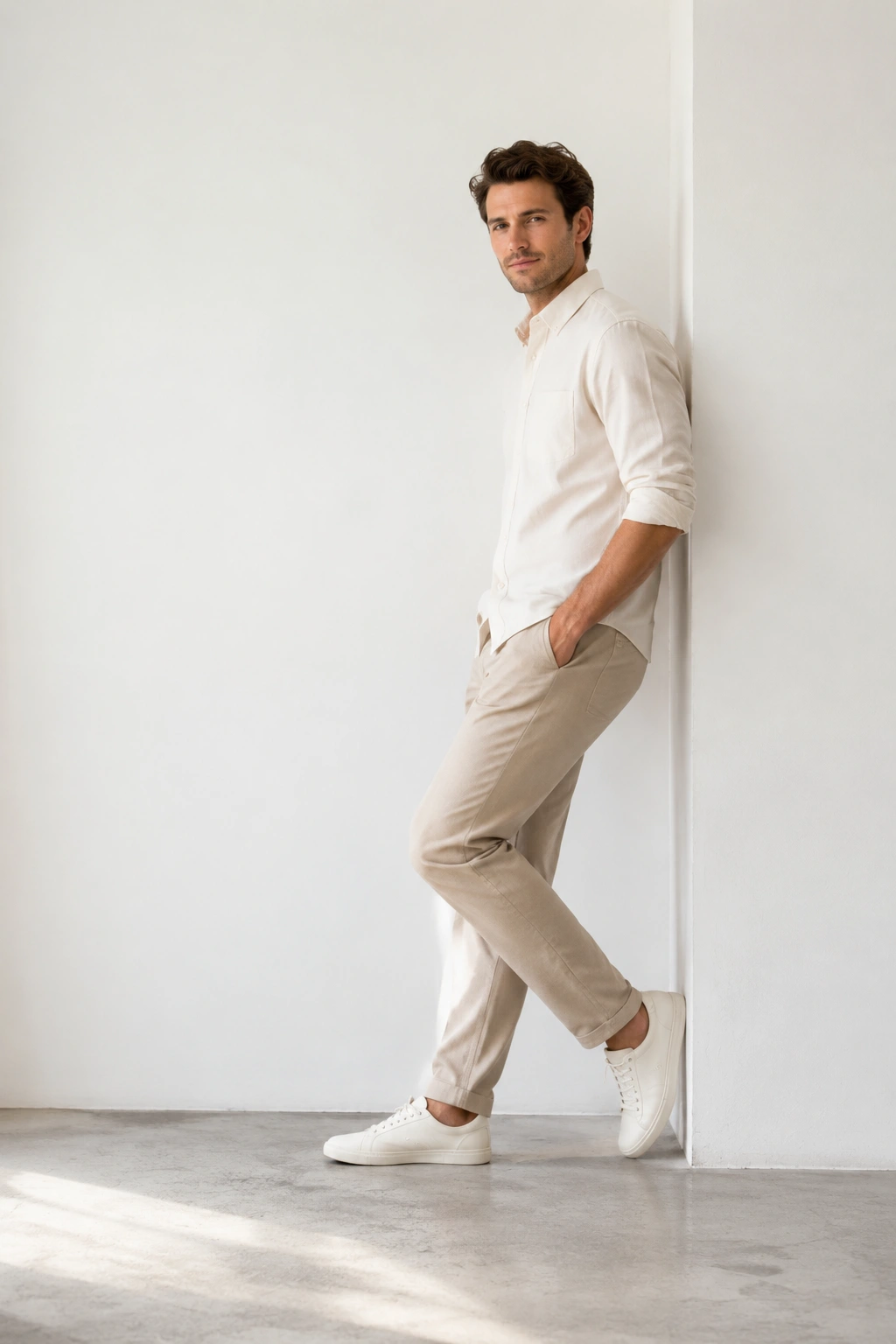
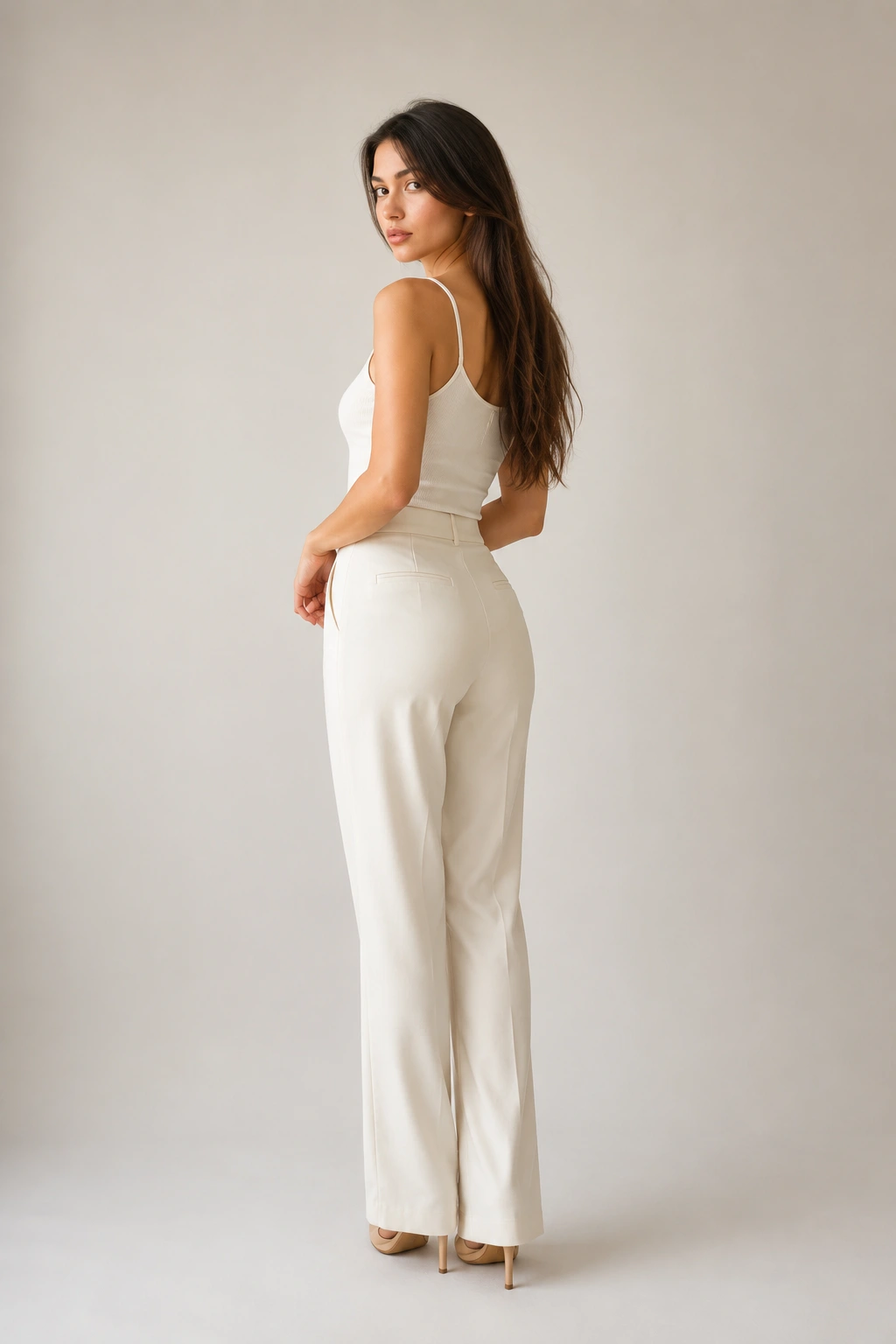
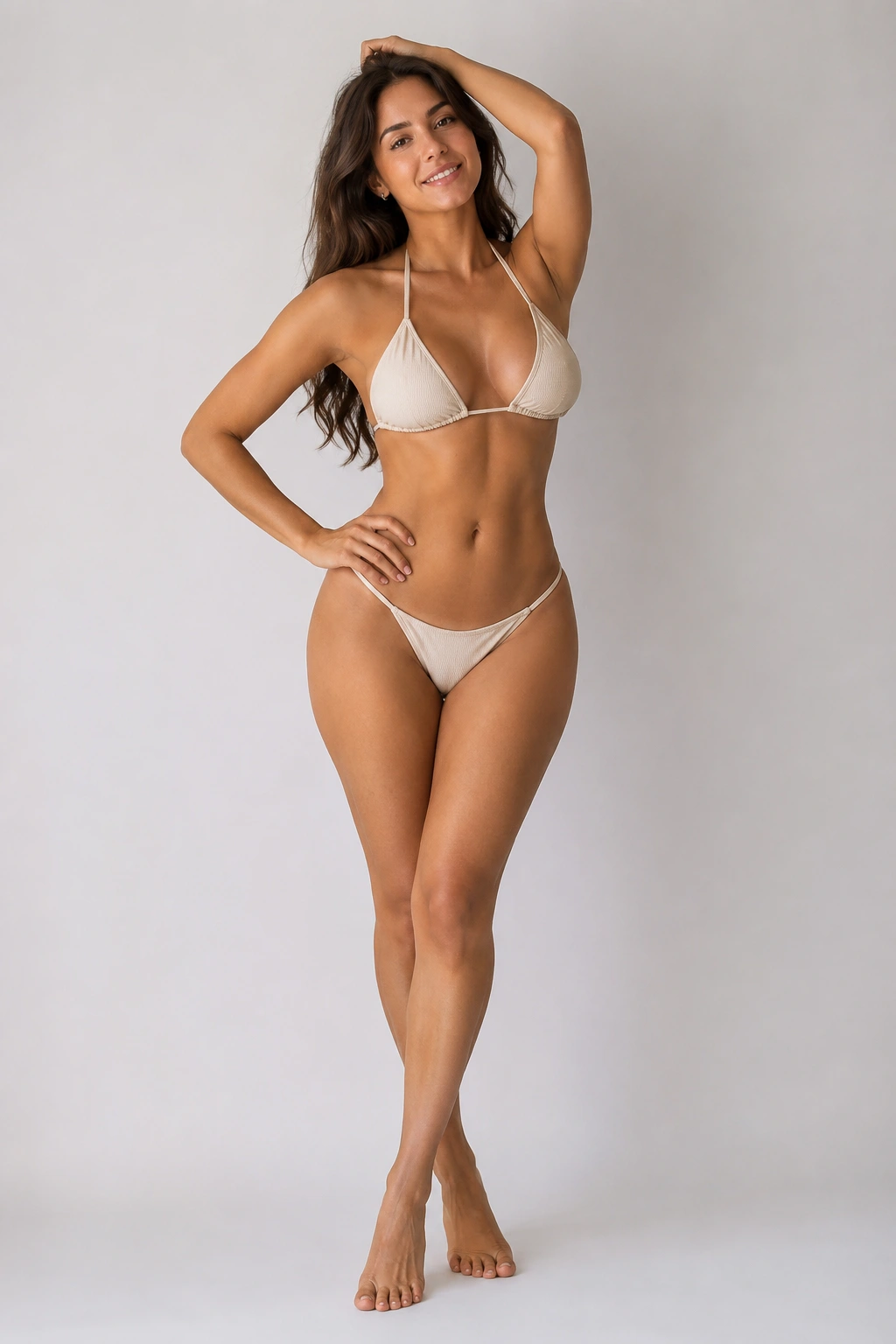

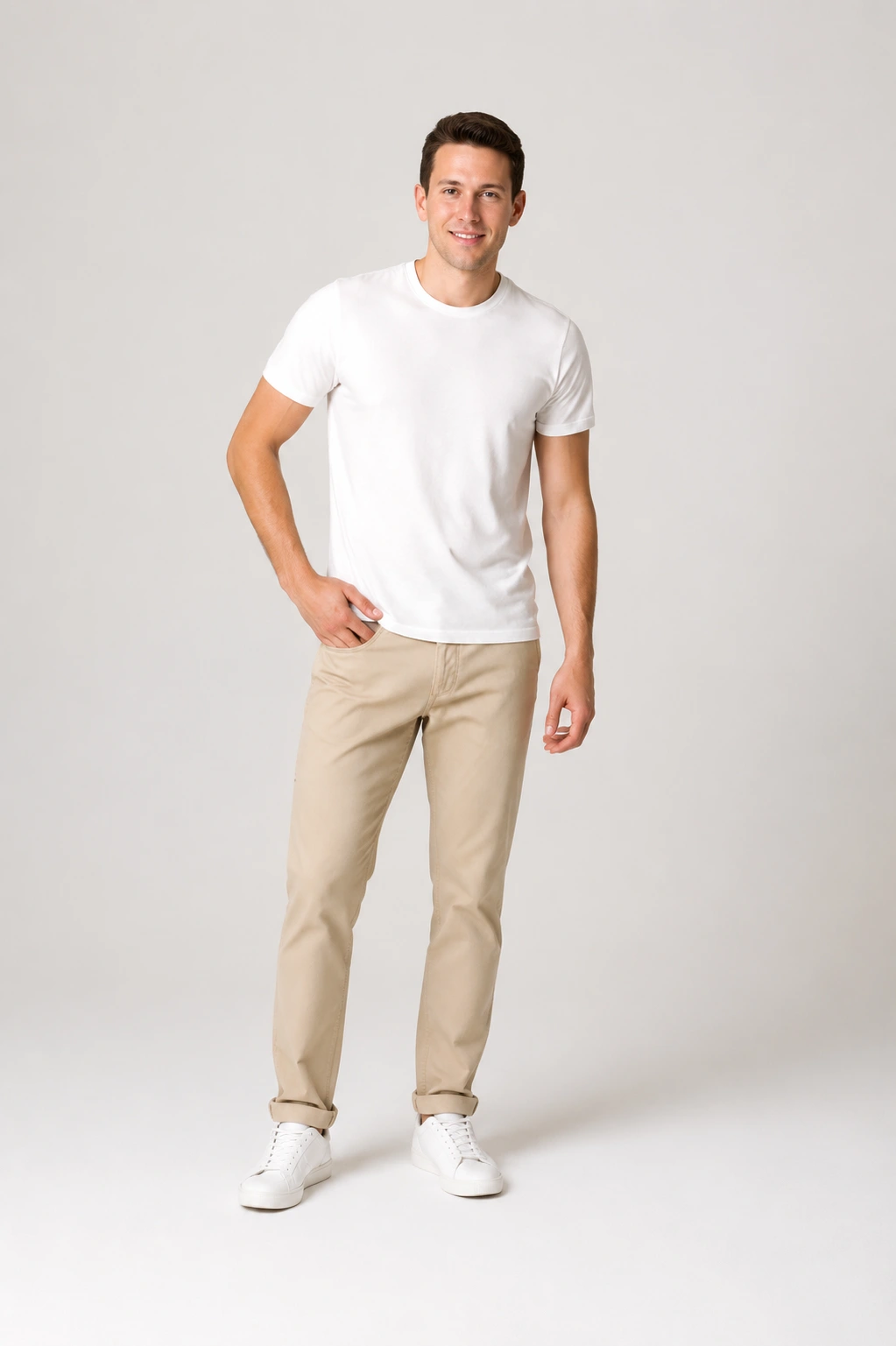
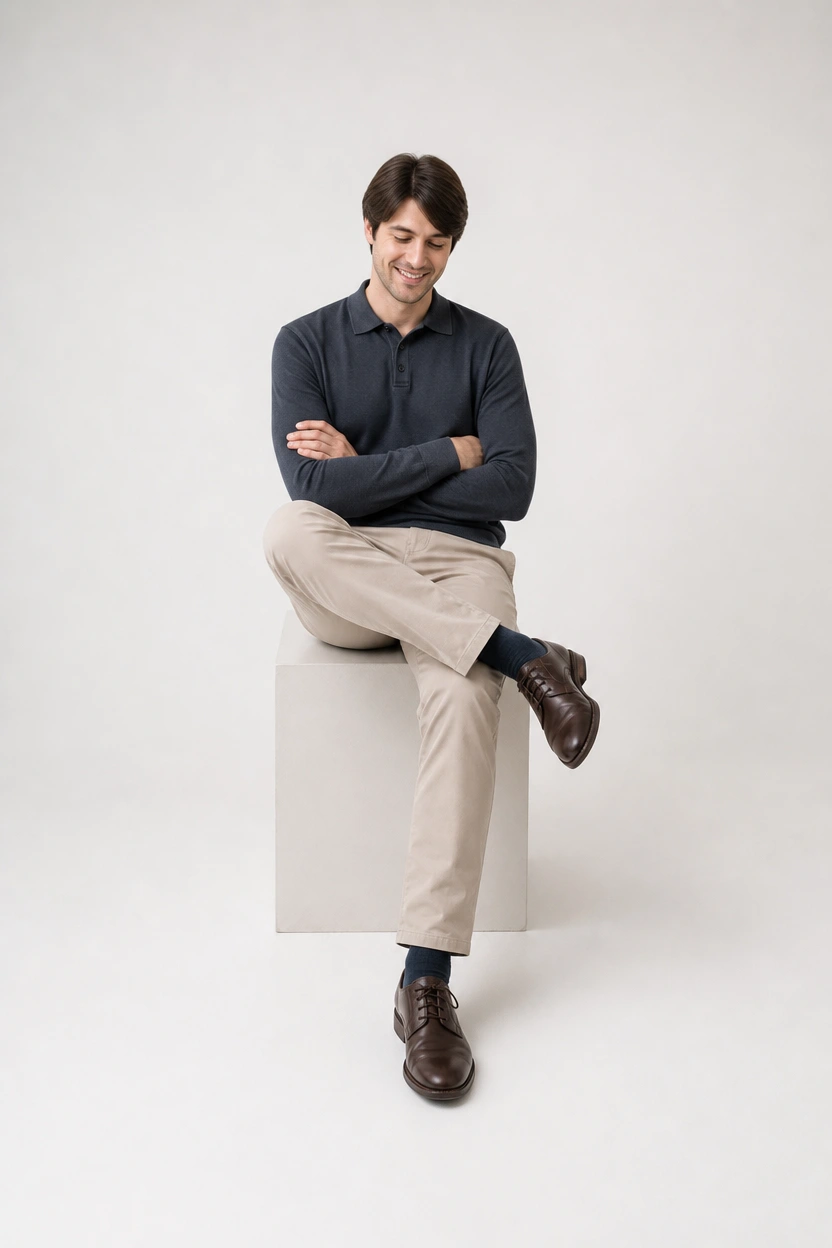
Source: PoseUp official pose library, retrieved October 14, 2026. These are reference examples, not matched before-and-after test outputs. Select an image to view it at full size.
AI Pose Changer: from source to result
05 tests · Single-generation results
- 01 · Original image
- 02 · Pose reference
- 03 · Generated result
Hand on hip
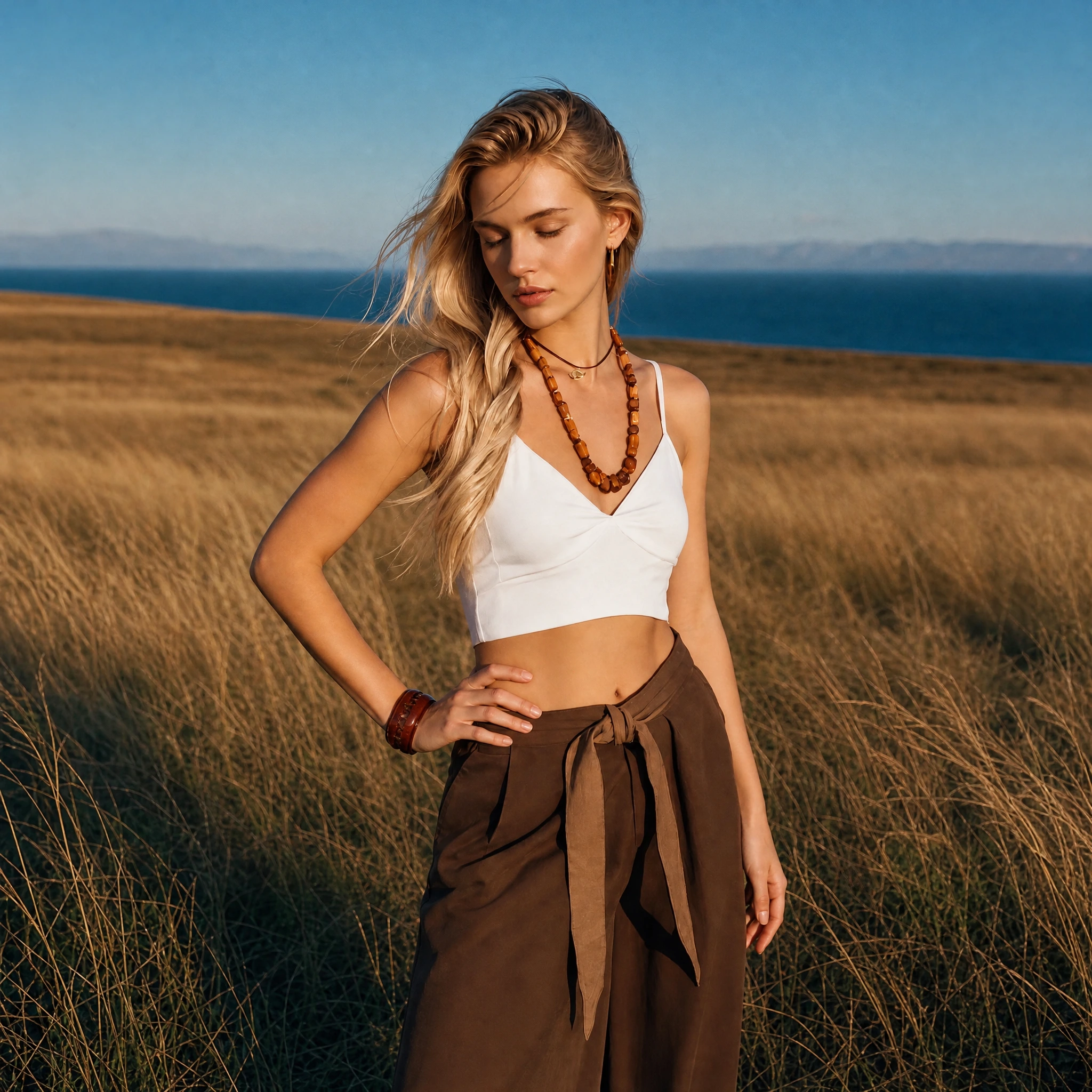
Outfit photo: compare a relaxed arm with a hand-on-hip pose that frames the waist.

What changed
The arm on the left of the image bends outward and the hand rests at the waist. The downward gaze, white top, brown trousers, and coastal grassland remain recognizable.
What to check
The output is square rather than the original portrait format. Framing, clothing folds, and background details also change; this is not an edit of the arm alone.
Holding a shoulder strap
Portrait with an accessory: explore lowering a raised arm to a shoulder strap, and see how the prop changes.
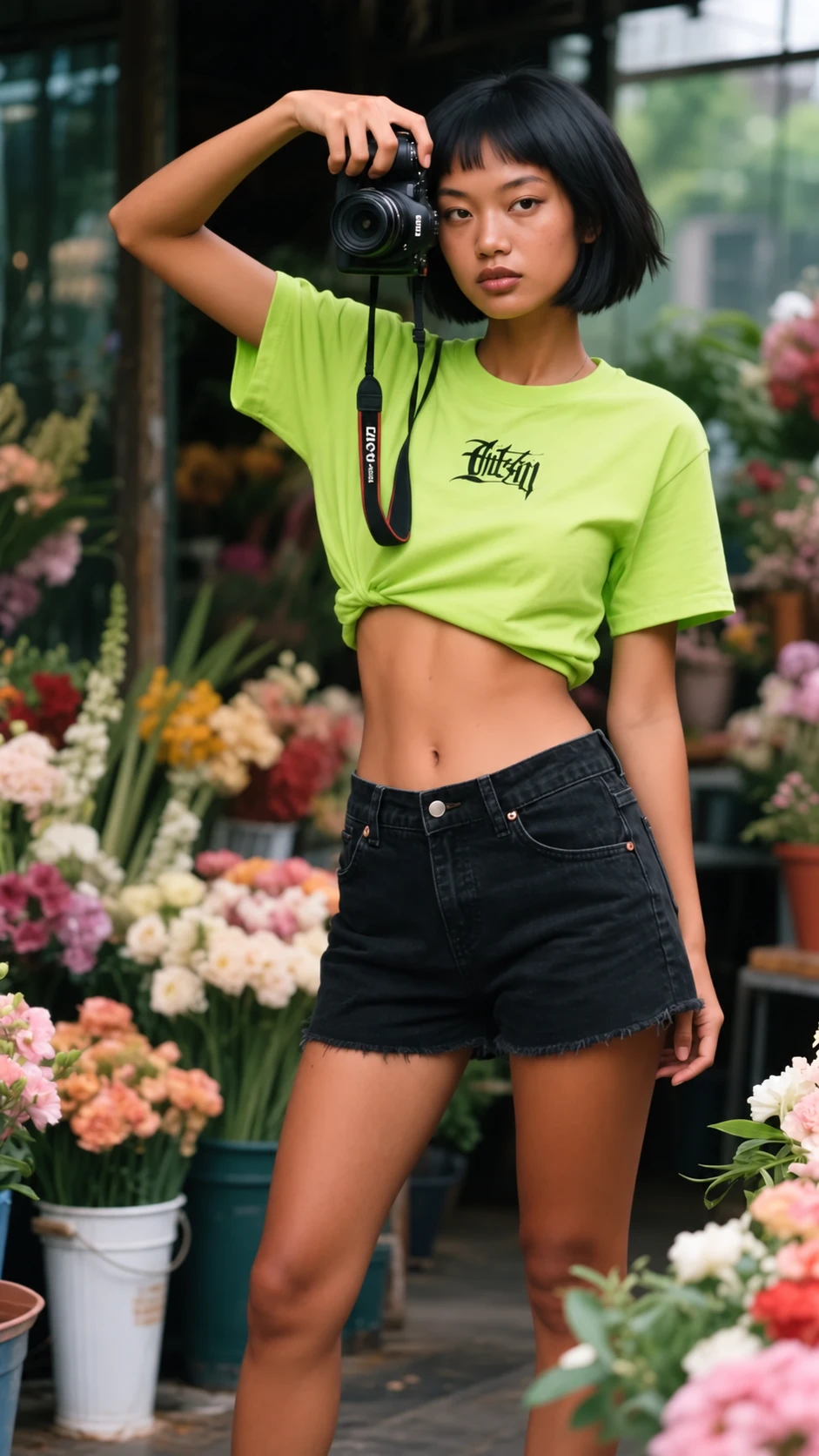
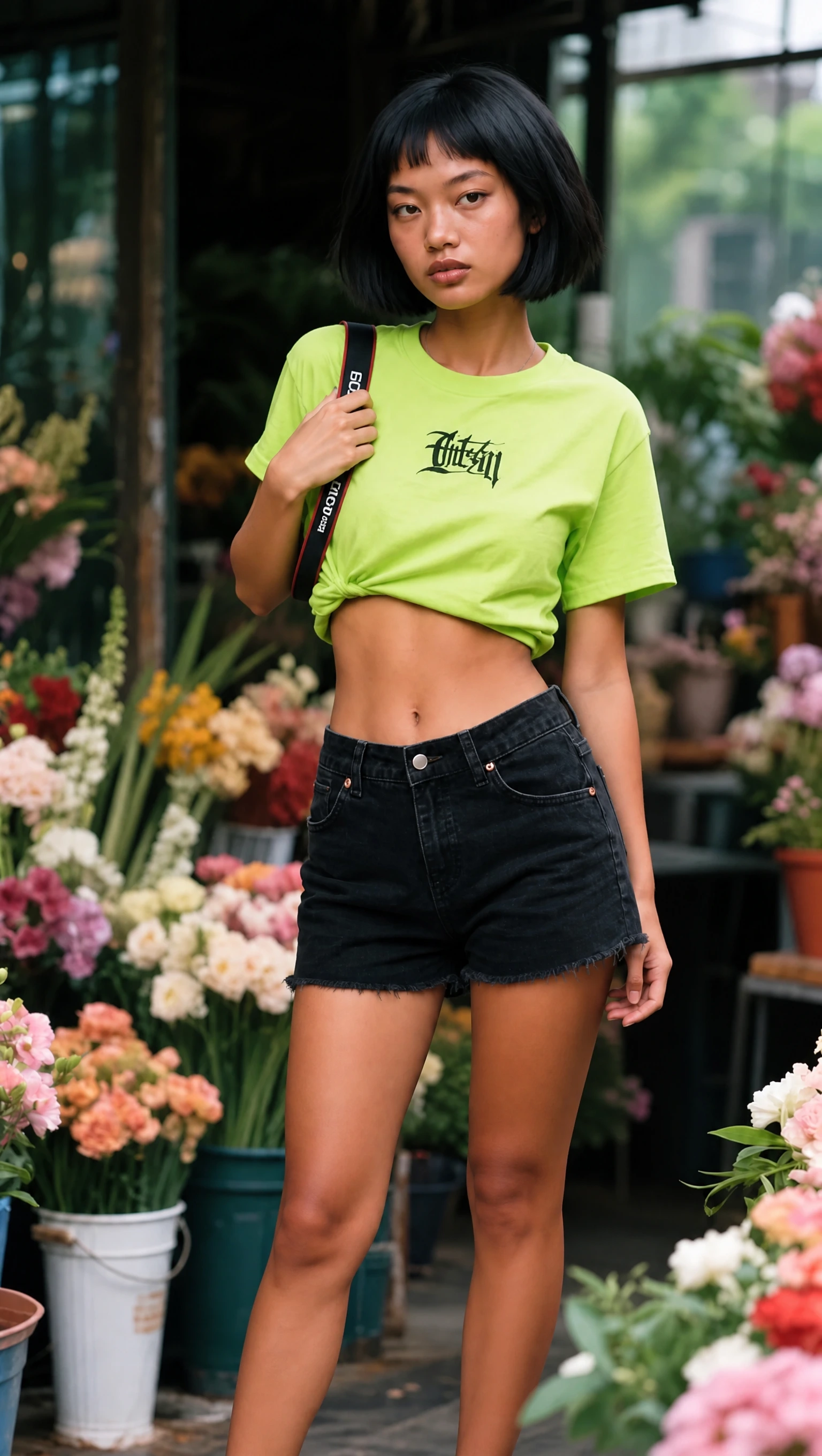
What changed
The raised arm lowers to hold a strap near the shoulder. The green shirt, black shorts, bob haircut, and flower-shop setting remain recognizable.
What to check
The camera held near the head in the source is no longer visible. A strap remains, while the shirt lettering and folds change. Props need checking as well as body position.
Looking over the shoulder
Profile-photo idea: compare shoulder angles while keeping the face turned toward the camera.

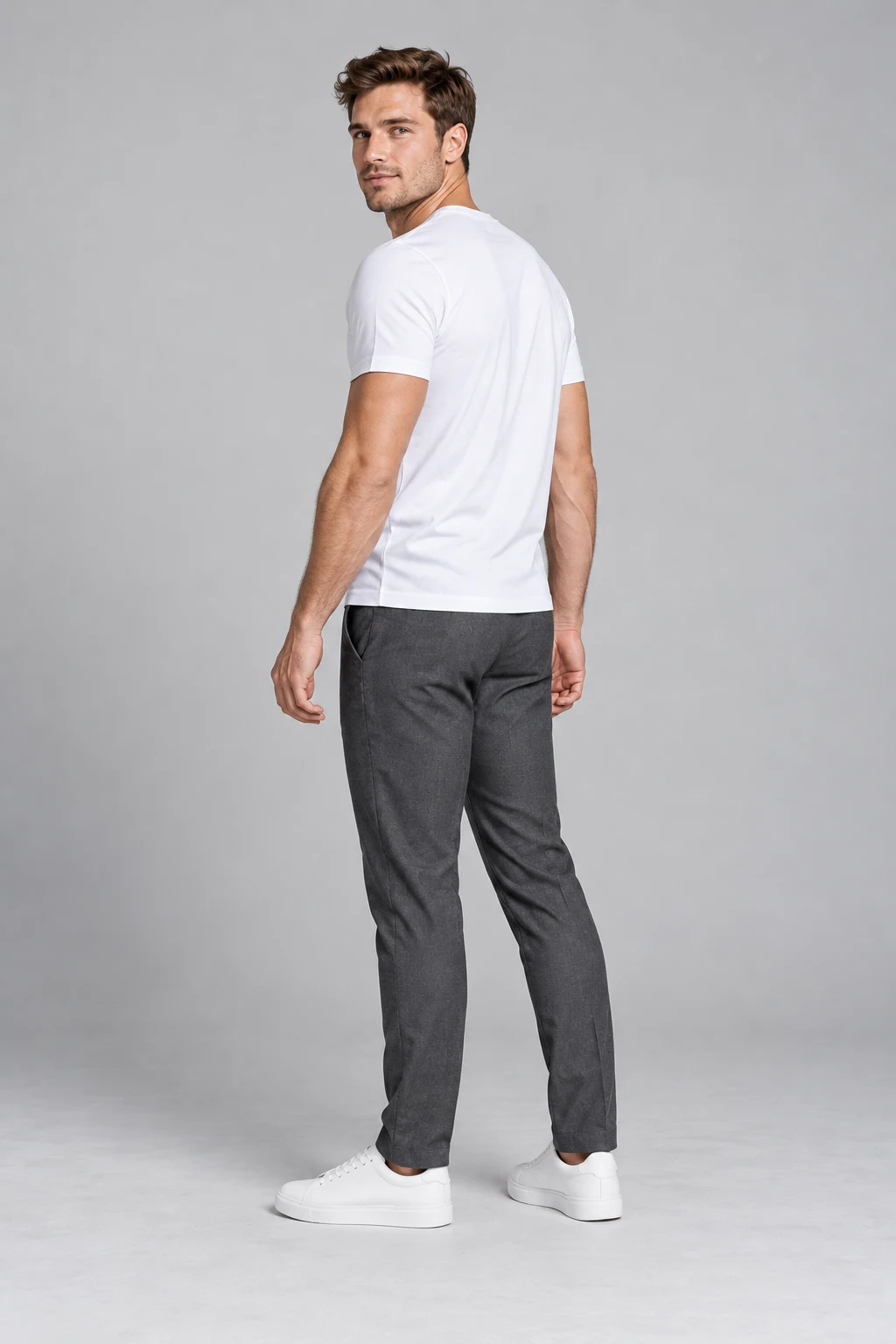
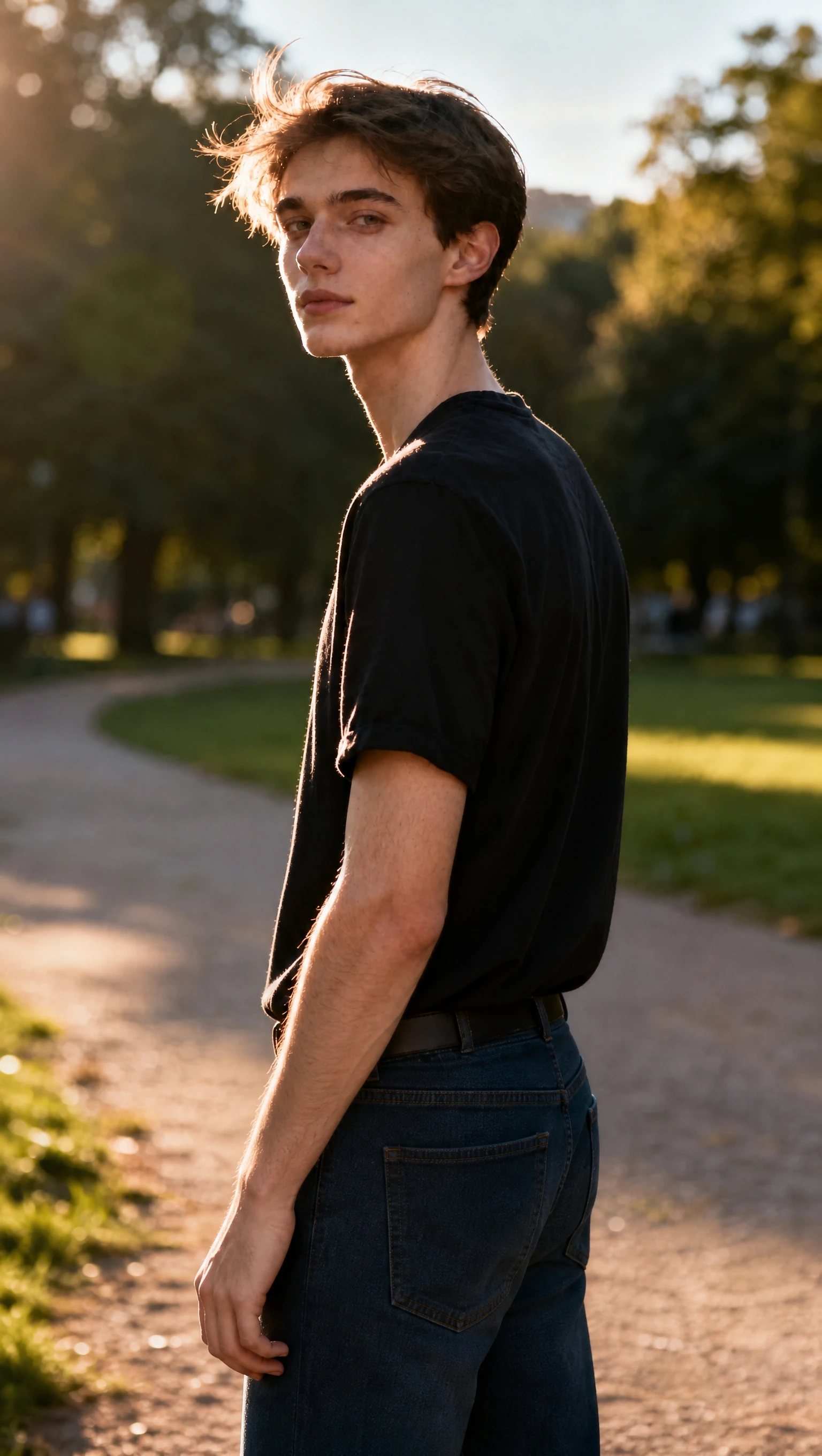
What changed
The torso turns farther away while the head looks back toward the camera. The black shirt and warm, backlit park setting remain recognizable.
What to check
The source already has a turned pose, so the adjustment is relatively subtle. The full-body reference is interpreted within a tighter crop; its foot placement is not shown.
One hand holding the other arm
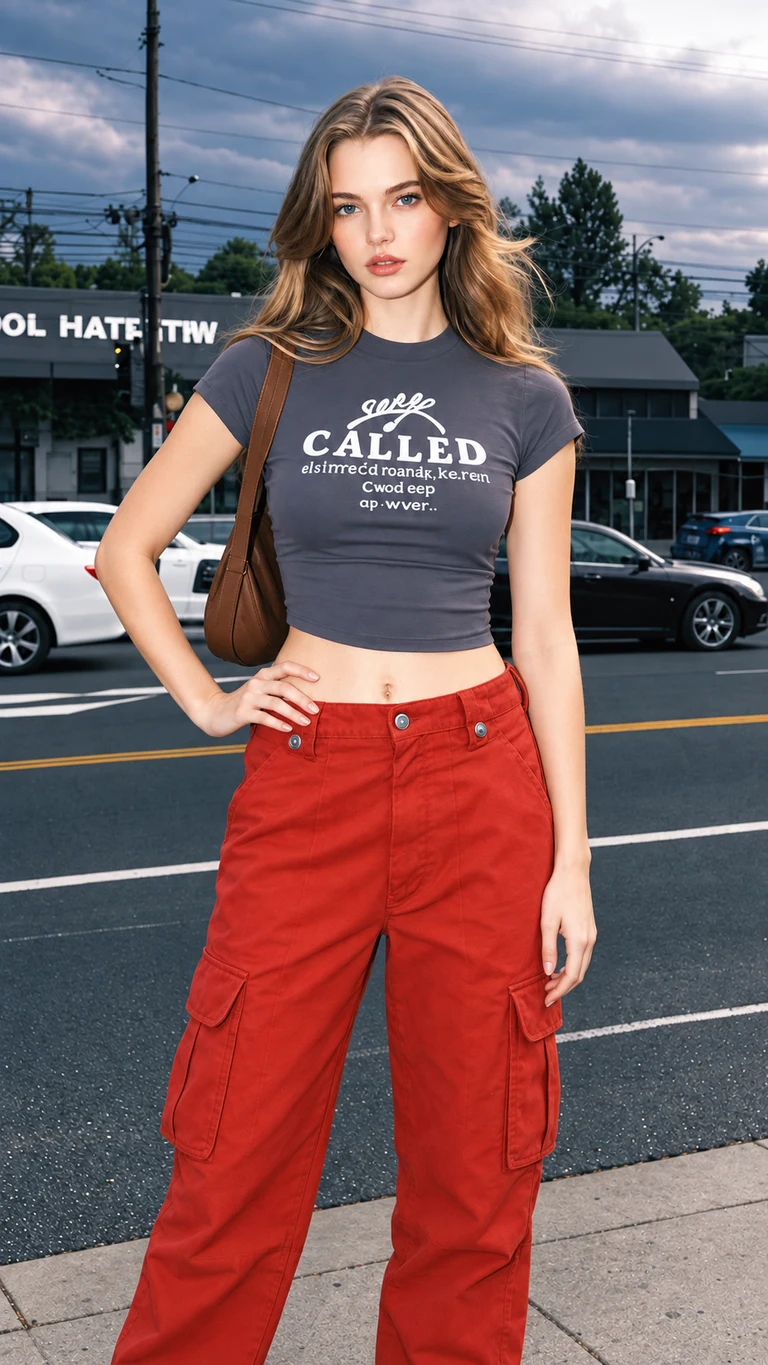
Outerwear photo: compare a hand at the waist with an arm held across the torso.
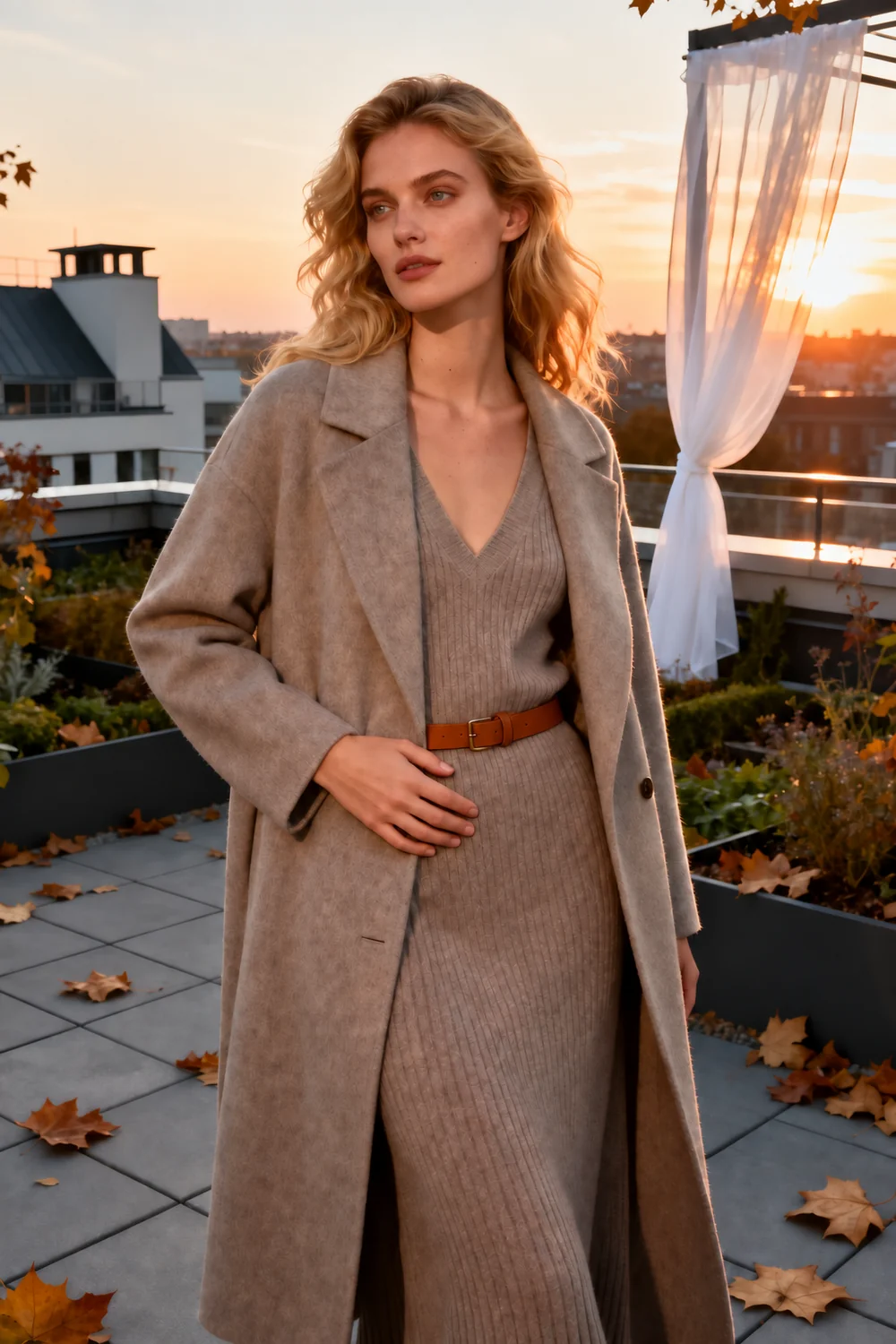
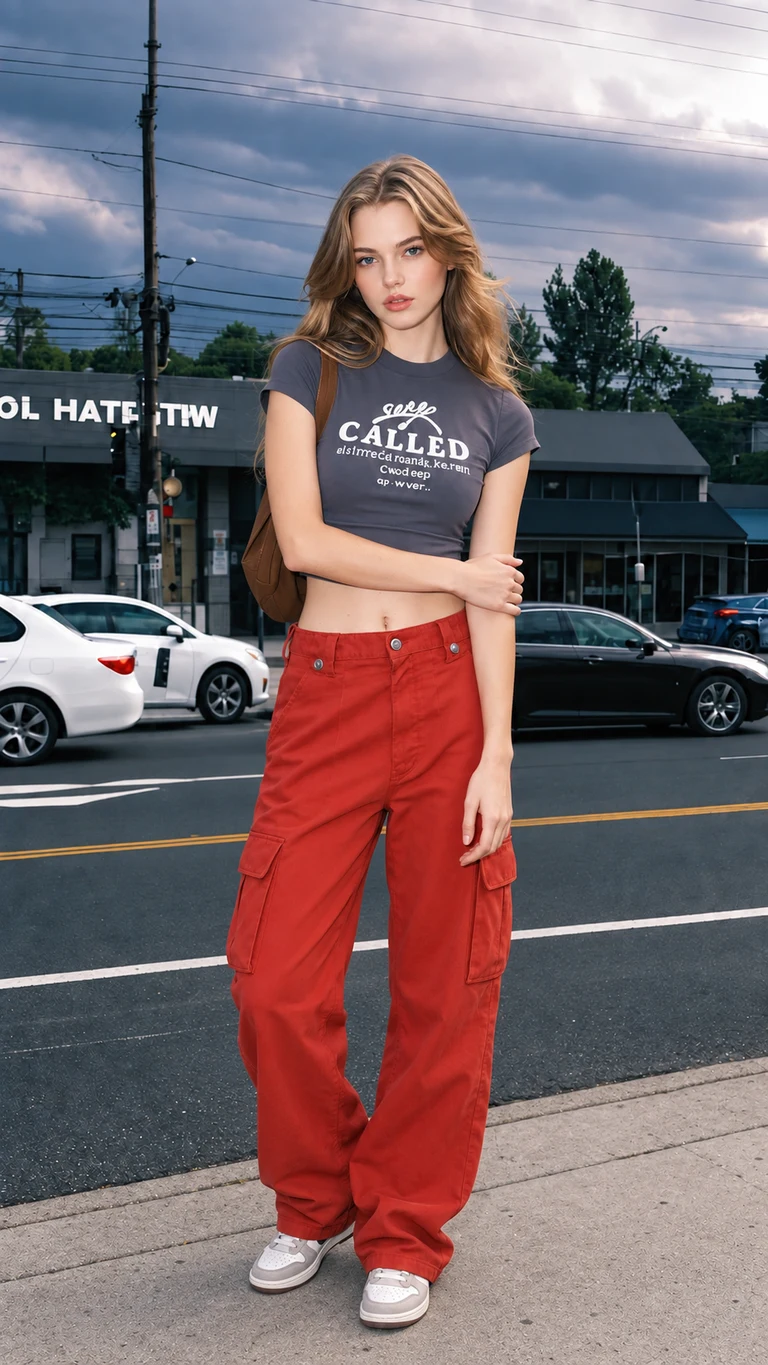

What changed
One arm now crosses the torso to hold the opposite arm, replacing the hand-at-waist pose. The long coat, knit outfit, and sunset rooftop remain recognizable.
What to check
The output changes from a portrait crop to a square composition. The belt, coat folds, and rooftop details differ from the source, even though the broad scene is retained.
Walking with a shoulder bag
Casual street portrait: explore carrying a bag on the shoulder during a walking pose.
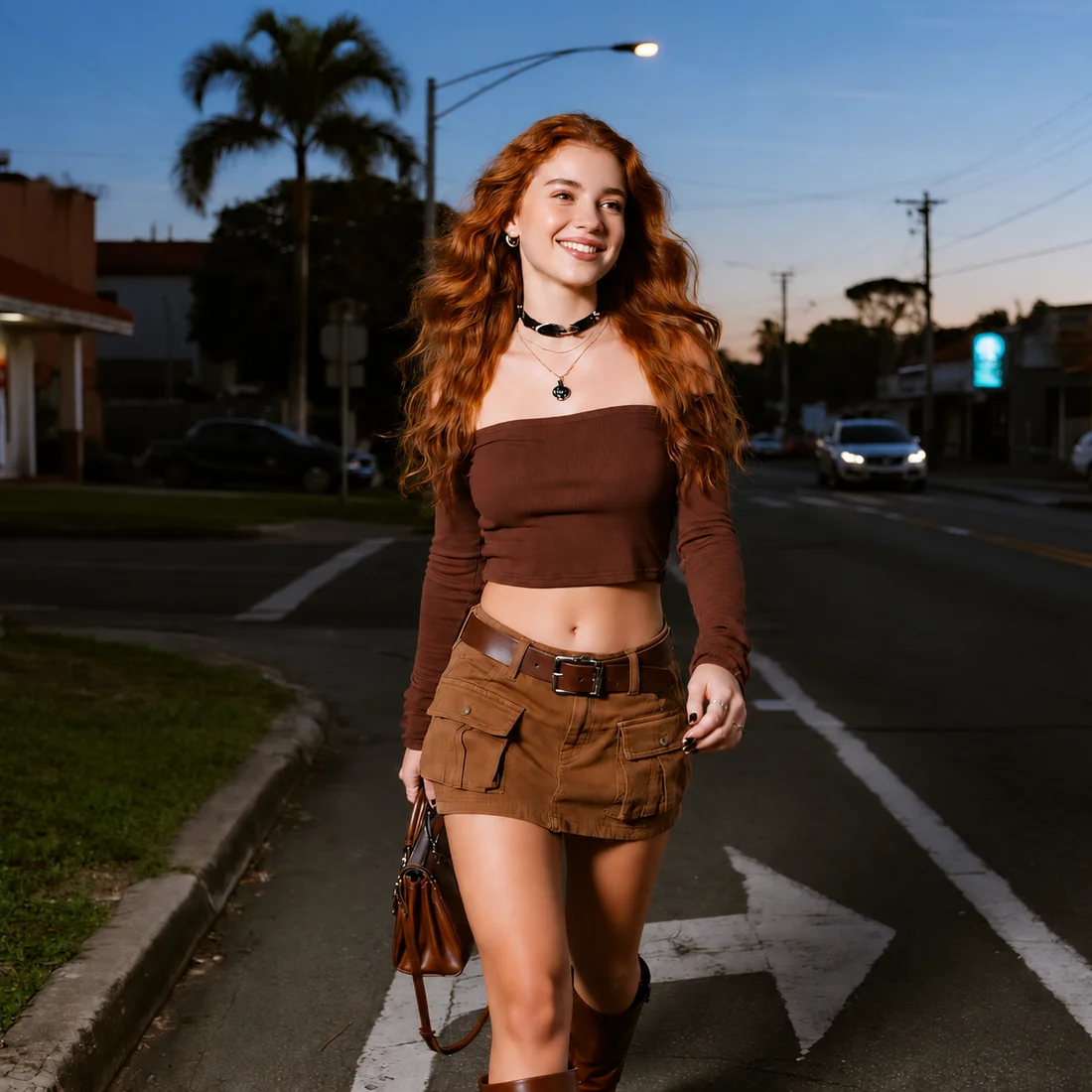
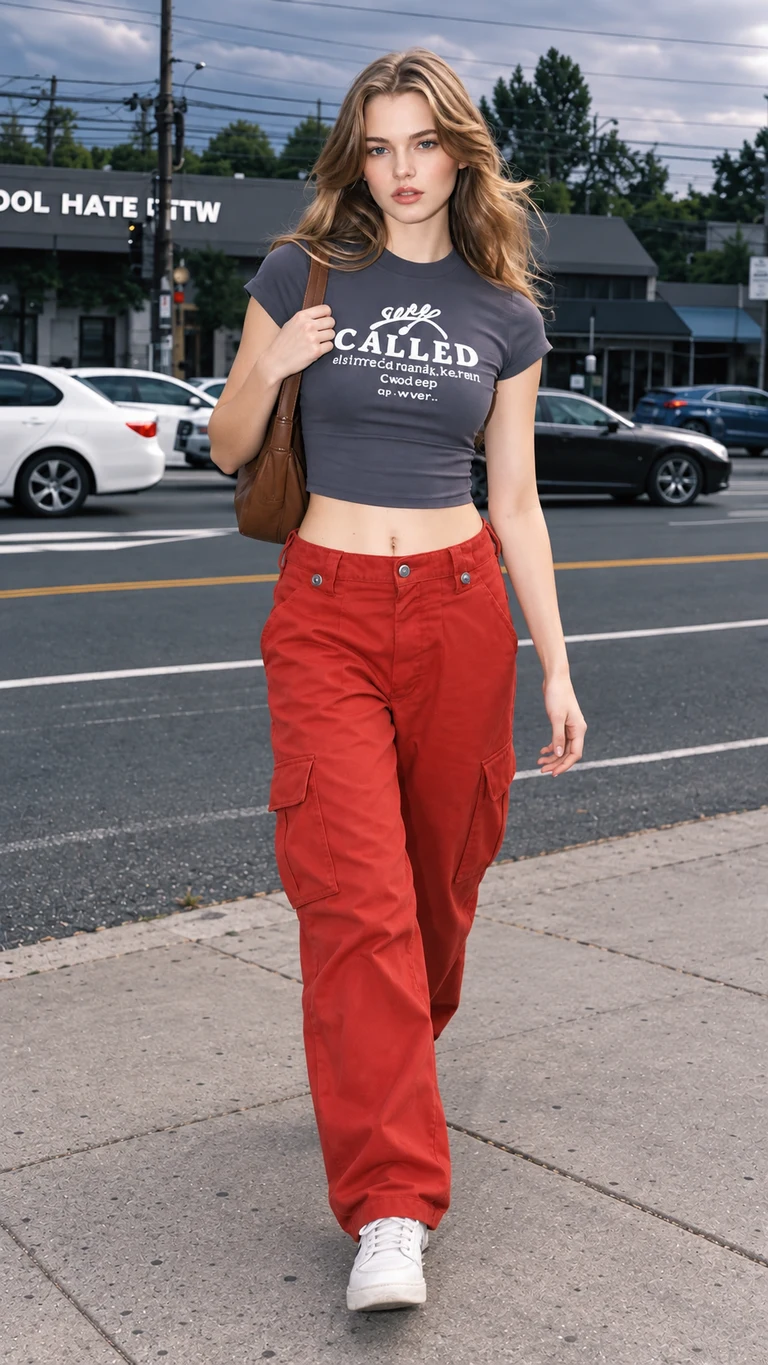
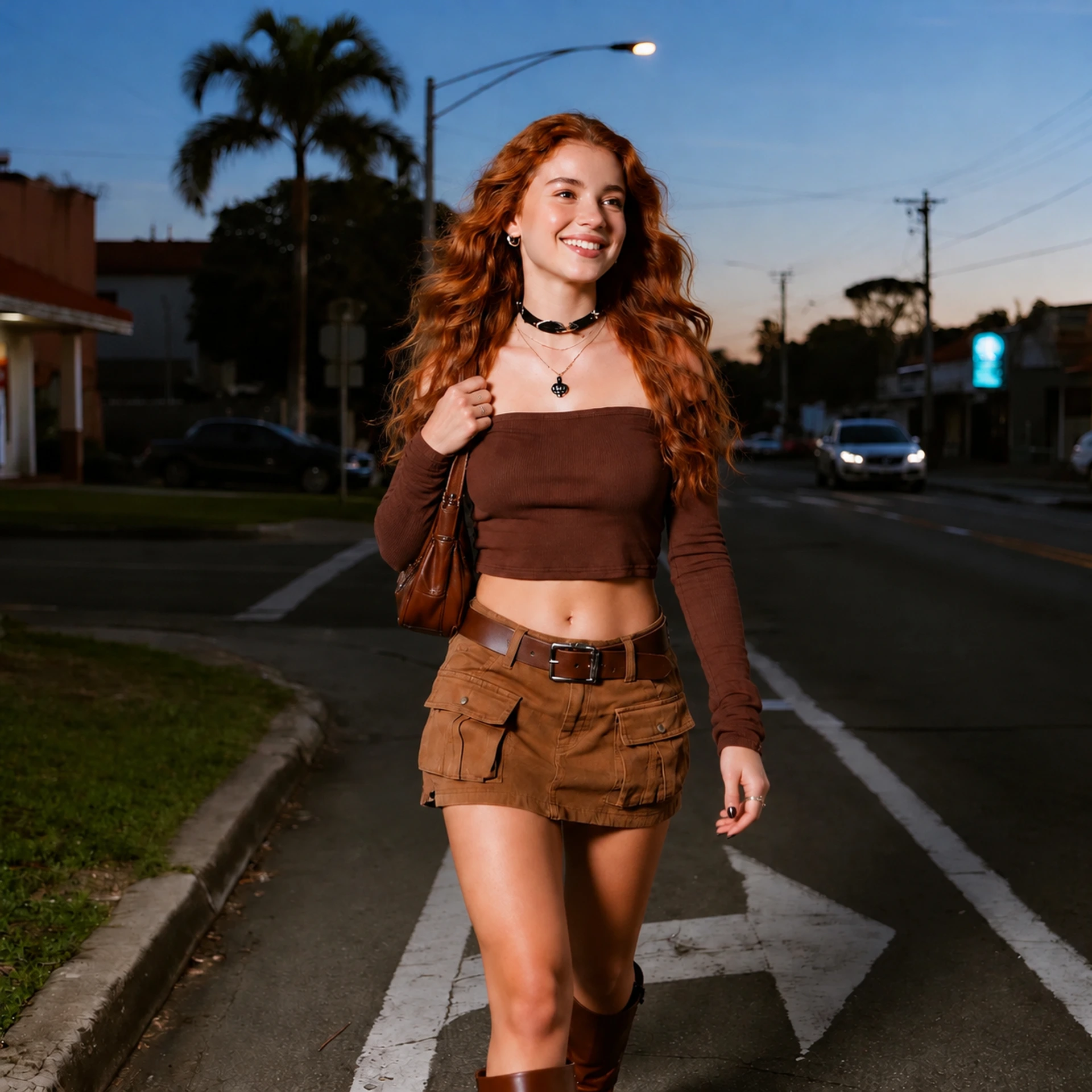
What changed
The walking motion remains, while the bag moves from a lowered hand to the shoulder and the hand rises to hold its strap. The brown outfit and dusk street setting remain recognizable.
What to check
The framing and road markings change, and the reference’s full-body step is not reproduced exactly. Compare the bag, fingers, and leg position rather than assuming an exact pose copy.
Our team tested these five examples using the same prompt, a library pose reference, and 2K / Medium settings. Each example shows the result from a single generation, rather than a selection from repeated attempts. Generation usually took about one minute in these tests. The team supplied the generated results without post-generation retouching; display copies are converted to WebP for the website.
Test results supplied on October 14, 2026. These examples show pose edits of portrait images. Results are individual examples, not a success-rate benchmark or a guarantee of identical faces, clothing, backgrounds, or framing. Open any image to inspect it in full.
Evaluation results: changes we can actually observe
Arm placement & crop
The hand-on-hip and rooftop examples show clear arm-placement changes, but both also change the portrait framing to a square composition. This makes them useful evidence of a pose adjustment and also a reminder to inspect the crop before using an output.
Accessories & scene
In the flower-shop example, the raised hand moves down to a shoulder strap, while the camera is no longer visible and shirt details change. In the walking example, the bag moves to the shoulder, but road markings and framing differ. These outputs show that moving a hand can affect nearby props and the surrounding scene.
Shoulder angle
The park portrait shows a further turn of the torso with the head looking back. Because the source was already turned, this is a smaller change; the cropped result does not demonstrate reproduction of the full-body reference.
Evidence limits
Across these five examples, the broad clothing and settings remain recognizable, with visible differences in details. We have not assigned facial-similarity scores, established a success rate, or measured a comparable PoseUp result. Five supplied outputs cannot answer those questions.
Evaluation conclusion: what this evidence supports
The available examples show that AI Pose Changer can produce the illustrated arm, shoulder, and accessory-position changes. They also show changes outside the requested movement, including props, clothing details, and framing. Use these cases to decide whether that tradeoff fits your own photo.
There is no supported quality winner between AI Pose Changer and PoseUp in this review. A head-to-head conclusion requires PoseUp results from the same sources and references, with the settings, timing, and all attempts recorded. Product features alone do not substitute for that evidence.
For a first trial, choose one movement and define what must remain recognizable. Compare the full-size result with your source before spending credits on another attempt. See our editor for inputs and pricing for current credit costs.
AI Pose Changer vs PoseUp: FAQ
Is AI Pose Changer a good PoseUp alternative?
It is worth considering when you want to prepare a specific photo edit using text, your own reference, or the built-in library in one workspace. If discovering a pose is your main task, evaluate the inspiration experience as well. Neither workflow choice proves a quality advantage.
Can I change a pose without finding a reference image?
Yes. Our reference input is optional, so you can describe the movement in words. Keep the instruction specific about the visible body position. A reference becomes helpful when the intended arrangement is difficult to communicate with a short description.
Does either tool guarantee an unchanged face?
This review does not establish a guarantee for either tool. Preserving the source person is our product goal, but actual results need inspection. Use the same source and a clearly defined request if you want to compare identity consistency yourself.
Should I buy the largest pack first?
Choose a budget that fits a small evaluation before committing to a larger allowance. A lower theoretical cost per image is useful only if you expect to use the credits and the results meet your needs. Read the current purchase and refund terms before paying.
Sources and review scope
Official sources were reviewed on September 16, 2026. The five AI Pose Changer case results were supplied by our team on October 14, 2026. Competitor feature descriptions are attributed to official product documentation. Prices and availability may change. This is our editorial comparison, not an endorsement by PoseUp.
- PoseUp: product and pose discovery
- PoseUp: official pose-changing tool
- PoseUp: current pricing
- PoseUp official homepage, The Library — checked October 14, 2026; eight reference images reproduced for comparison.
See how our editor works and our pricing details before deciding.